
The MetaTrader Interface — Four Windows That Matter
October 30, 2026

MetaTrader looks cluttered on first launch because it opens with everything visible. Four windows do almost all the work, and once you know what each is for, the rest can be closed and forgotten.
The four windows that matter
| Window | Purpose | Shortcut |
|---|---|---|
| Market Watch | Instrument list and prices | Ctrl+M |
| Navigator | Accounts, indicators, EAs | Ctrl+N |
| Terminal / Toolbox | Trades, history, alerts, logs | Ctrl+T |
| Chart | Price display and analysis | — |
MT4 calls the lower panel “Terminal”; MT5 calls it “Toolbox”. They serve the same function.
Market Watch
The list of instruments with live bid and ask prices.
Showing all instruments
By default the platform hides most symbols. To see everything your broker offers:
Right-click in Market Watch → Symbols
(MT4: “Show All” also works)
Browse by category, select and add
This is where you find gold if it is not listed. Brokers name it differently — XAUUSD, GOLD, XAUUSD.raw among others — and it may sit under a Metals or Spot category rather than Forex.
Useful columns
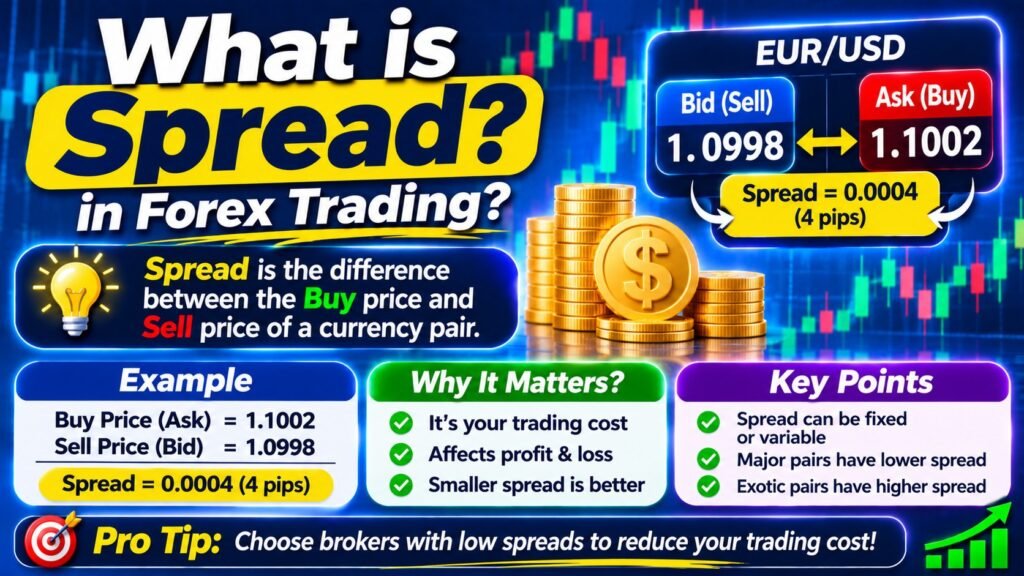
Right-click the column headers to add or remove columns. Spread is worth displaying — it changes through the day and around news, and seeing it live is more informative than any advertised figure.
Contract specifications
The single most useful item in Market Watch, and the one most traders never open.
Right-click a symbol → Specification
Shows:
Contract size
Digits (decimal places)
Minimum and maximum lot
Lot step
Margin requirement
Swap long and short
Trading hours
Stop level (minimum stop distance)
Everything the Risk Management and Gold Trading sections asked you to confirm is here. The contract size and digits together resolve the gold pip convention question in seconds.
Stop level deserves attention — it is the minimum distance from current price at which a stop or target can be placed. Orders closer than this are rejected, which is a common cause of “Invalid stops” errors.
Tick chart
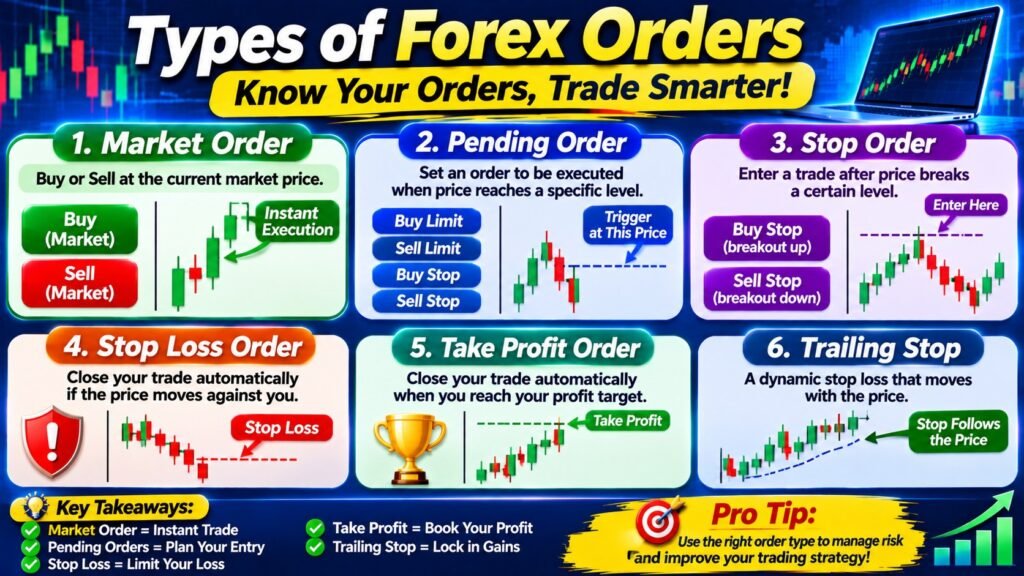
A small tab at the bottom of Market Watch showing recent tick-by-tick movement for the selected symbol. Occasionally useful for observing spread behaviour around news.
Navigator
A tree containing four sections.
Accounts — logged-in accounts. Double-click to switch between them.
Indicators — built-in and custom indicators. Drag onto a chart to apply.
Expert Advisors — automated trading programs.
Scripts — single-execution programs that run once and stop.
Custom indicators and EAs appear here after being placed in the correct data folder, covered in a later lesson.
Terminal / Toolbox
The lower panel, with several tabs. The important ones:
Trade
Open positions and pending orders, plus your account figures.
| Field | Meaning |
|---|---|
| Balance | Closed-trade account value |
| Equity | Balance plus floating P/L |
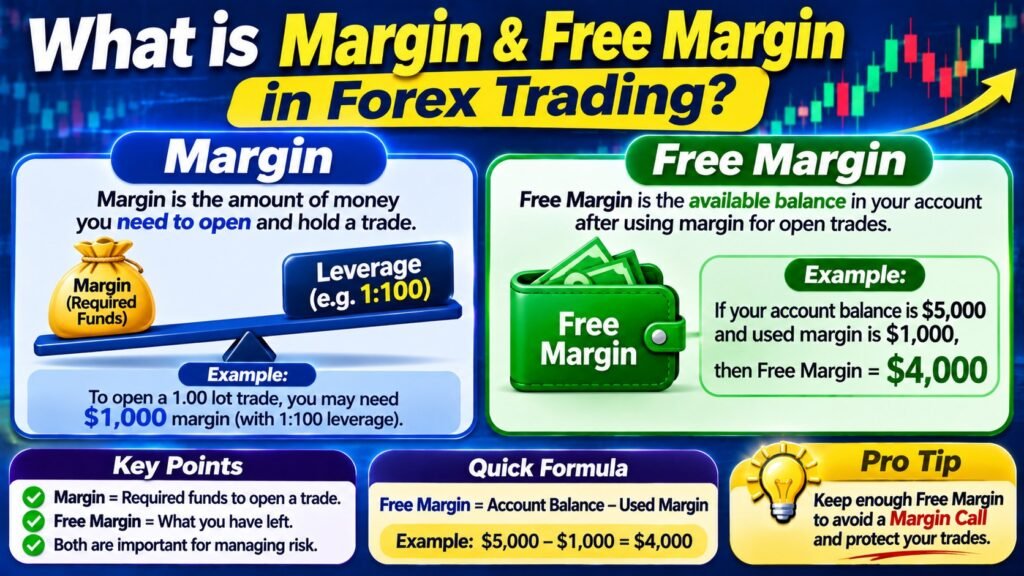
| Margin | Collateral currently held |
| Free Margin | Available for new positions |
| Margin Level | Equity ÷ margin × 100 |
Equity is the number that matters. Balance ignores open positions; equity is what the account is actually worth right now.
Margin level is the figure to watch if you are ever close to a margin call — though with proper position sizing, as the Risk Management section covers, you should never be.
History
Closed trades. Right-click to change the period, and to export.
Export is how you populate a journal. Right-click → Save as Report produces an HTML file; some builds offer a detailed report with additional statistics.
The export gives you entry, exit, size and profit per trade. You add the fields the platform cannot know — setup type, planned R:R, and whether you followed your rules.
Journal and Experts
Journal logs platform events: connections, order submissions, errors.
Experts logs expert advisor activity.
Both are where you look when something did not work. An order that appeared to fail leaves a reason in the Journal, and that reason is usually more specific than the popup message was.
Alerts
Price alerts. Right-click → Create to set one.
More useful than it appears, and directly relevant to the patience problem: an alert at your marked level lets you leave the screen rather than watching for price to arrive.
Mailbox
Messages from the broker — including notices about trading hours changes, swap adjustments and server maintenance. Worth checking occasionally.
Arranging the workspace
A practical layout for most traders:
Market Watch left, narrow
Navigator closed (Ctrl+N when needed)
Terminal bottom, collapsed to 2-3 rows
Charts the rest
Navigator is only needed when applying an indicator or EA. Keeping it closed reclaims useful space.
The toolbars can also be reduced — right-click a toolbar to customise, and remove buttons you do not use.
Profiles
A profile saves your entire workspace: which charts are open, their timeframes, indicators and layout.
File → Profiles → Save As
Useful profiles:
“Majors” — EUR/USD, GBP/USD, USD/JPY
“Gold” — XAU/USD across timeframes
“Review” — daily charts for weekend work
Switching profiles rearranges everything in one step, which is considerably faster than opening charts individually.
Settings worth changing immediately
Tools → Options.
Charts tab: increase “Max bars in history” and “Max bars in chart” to a large number. The defaults limit how far back you can scroll, which interferes with marking historical levels.
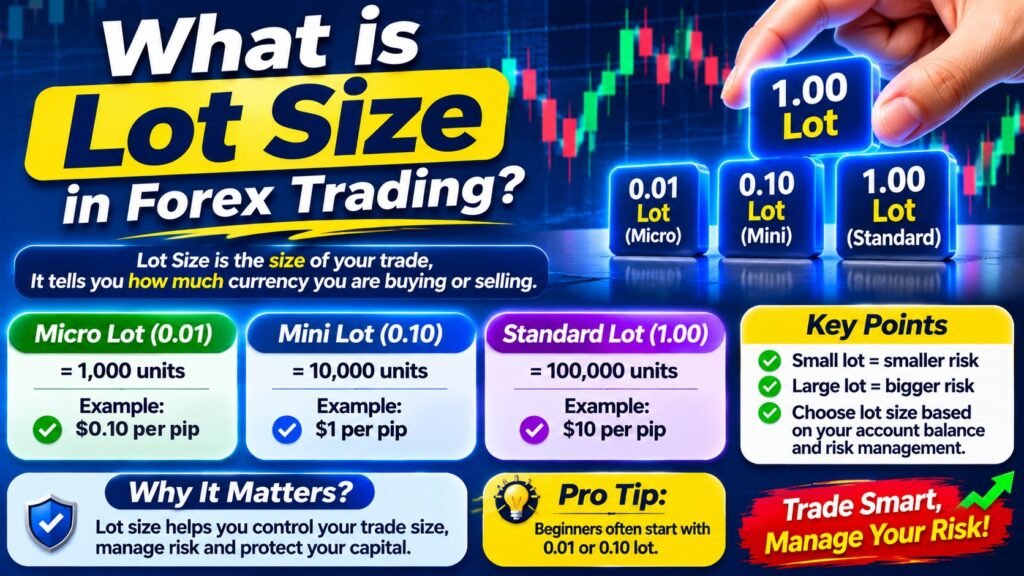
Trade tab: set a default lot size that is small rather than the platform default of 1.0. This prevents a mis-click from submitting a full standard lot.
Events tab: enable sound alerts if you use price alerts.
The default lot setting is worth two minutes
MetaTrader’s one-click trading and the order window both open with a default volume. If that default is 1.0 and your intended size is 0.03, a hurried click submits a position roughly thirty times too large. Setting the default to your broker’s minimum means a mis-click costs almost nothing. This is the kind of structural protection the Psychology section argues for — it removes an error rather than requiring you to avoid it.
One-click trading
A setting that allows orders to be placed with a single click, without a confirmation dialog.
Faster, and it removes the confirmation step where you would normally check the volume and the stop.
For most traders — particularly anyone whose journal shows impulsive entries — leaving it off is the better choice. The half-second the dialog costs is the half-second in which you notice the lot size is wrong.
What to do next
The next lesson covers charts and timeframes — setting up a readable chart and saving it as a template.
Frequently asked questions
Where do I find contract specifications in MetaTrader?
Right-click the symbol in Market Watch and choose Specification. It shows contract size, decimal digits, minimum lot, lot step, margin, swap rates, trading hours and the minimum stop distance.
Why can I not find gold in Market Watch?
Most symbols are hidden by default. Right-click in Market Watch and open Symbols to show everything. Gold may be named XAUUSD, GOLD or a variant, and often sits under a Metals category rather than Forex.
What is the difference between balance and equity?
Balance is your account value from closed trades only. Equity is balance plus the floating profit or loss on open positions — it is what the account is actually worth right now.
What is stop level in contract specifications?
The minimum distance from current price at which a stop loss or take profit can be placed. Orders with levels closer than this are rejected, which is a common cause of “Invalid stops” errors.
Should I enable one-click trading?
Generally not, especially if your journal shows impulsive entries. The confirmation dialog is where you notice a wrong lot size or missing stop, and the half-second it costs is usually worth paying.
How do I export my trade history?
Open the History tab in Terminal or Toolbox, right-click, and choose Save as Report. The export gives entry, exit, size and profit; you add setup type, planned R:R and rule-following yourself.